
-
Products
 Mobile Utilities


 Mobile Utilities

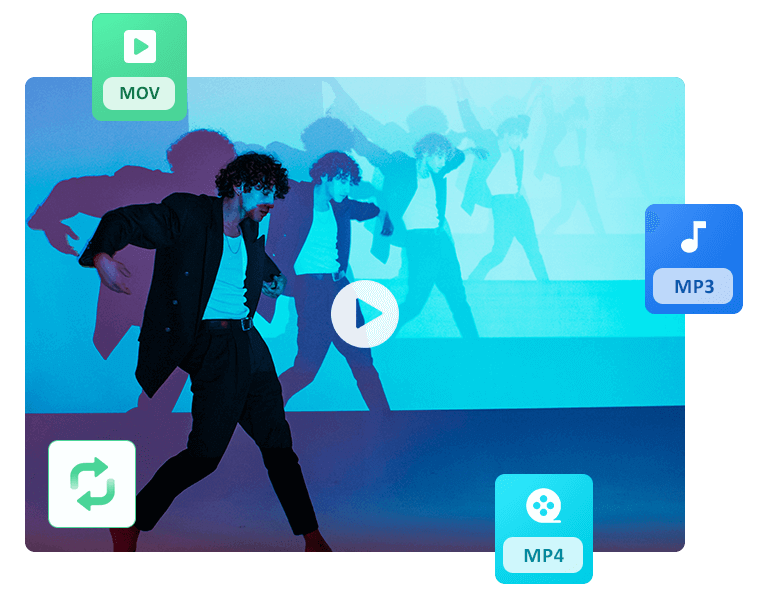
As a free MP4 to MP3 converter, Any Video Converter Free enables you to effortlessly convert MP4 videos to high-quality MP3 files. With its user-friendly interface, you can quickly convert your videos without any hassle. It preserves the original audio quality during the conversion process, ensuring a seamless experience. Additionally, this free converter supports batch conversion and is compatible with various media formats such as MOV, AVI, FLV, MKV, AAC, and more.
Batch convert MP4 to MP3 on Mac and PC
High-quality conversions
Support multiple formats
Fast conversion speed with GPU acceleration

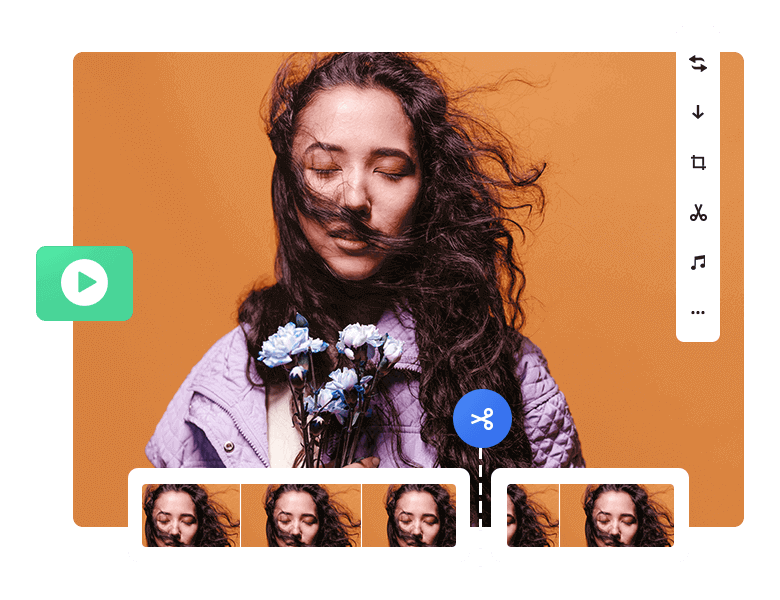
Any Video Converter Free functions effectively as a complimentary video trimmer, allowing users to shorten or edit the length of videos without compromising quality. This tool helps you to adjust two markers to specify the starting and ending points of your clip, making it easy to trim the desired portion. Achieve the ideal length for various video platforms, ensuring compliance with duration limits for TikTok, Instagram Stories, Facebook Stories, and YouTube.
Fast video cutting
Support any video format
Create clips for socials
Trim videos quickly anywhere whether you are on the go or at home

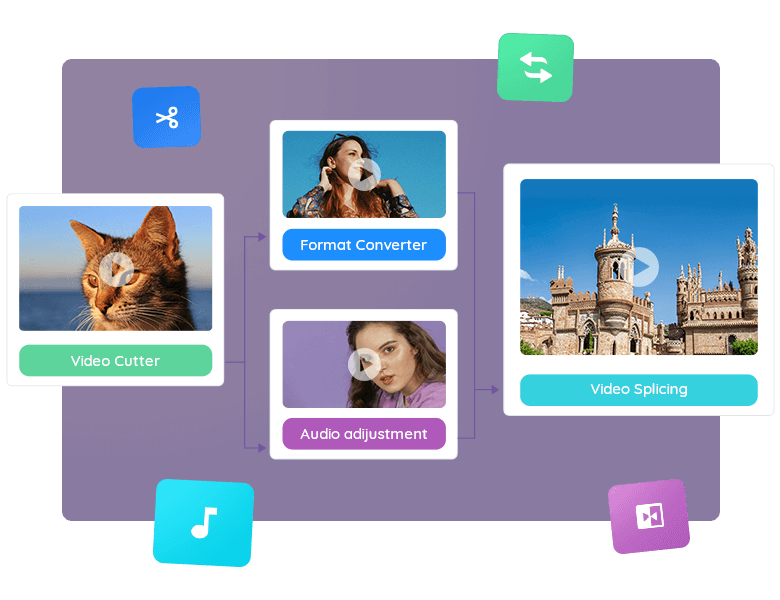
Any Video Converter Free is a universal and versatile free video editing tool for Windows and Mac users. This exceptional video editor seamlessly integrates various features such as video format conversion, video cutting, video cropping, video merging, audio adjustment, audio filtering, GIF maker, etc. With this comprehensive software, users have the ability to convert between a wide range of video formats, including MP4, MOV, MKV, M2TS, and more, as well as create astounding video content.
All-in-One Free Video Converter
Diverse preset profiles to fit various devices
Batch and customize multiple files as you like
Fast speed conversion & high output quality

Robust video converter: Any Video Converter is a powerful video conversion tool that empowers users to seamlessly convert a wide range of video formats. With support for MP4, MKV, MOV, M4V, WMV, AV and FLV, MPG, TS, and 3GP, you have the flexibility to convert local recorded videos as well as online content. Enjoy the freedom of offline playback on your preferred media player. Additionally, this tool facilitates the conversion of audio files including MP3, M4A, AC3, OGG, OPUS, and FLAC, ensuring an immersive listening experience.
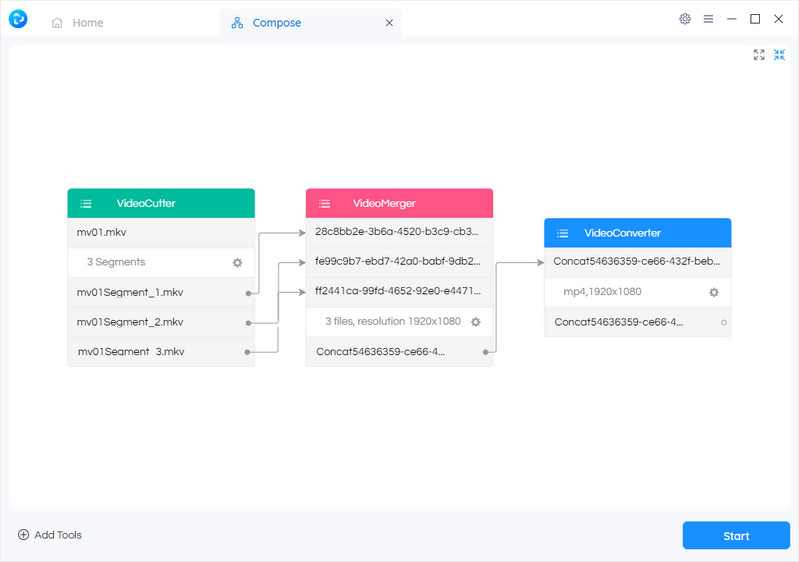
Extensive toolbox with custom workflow tools: Combine individual tools in a personalized manner to effortlessly fulfill your video processing tasks, providing you with a comprehensive and optimal solution.
This MP4 converter lets you easily convert files from over 30 source formats to the MP4 format. Simply add your video file or provide a link to a video file to convert your video to MP4. This high quality MP4 conversion optimizes the conversion process, ensuring top-notch results. Best of all, it's completely free to use.
Warning: You can use our converter to download your own personal videos, as well as public domain and non-copyrighted videos. It is important to respect copyright laws and obtain proper permission before converting and downloading copyrighted videos.


This video to MP3 converter provides a fast and reliable solution for converting videos to MP3 format free. You can extract audio from movies, films, and music clips with ease, and save high-quality MP3 music files.
Easily convert multiple files to MP3 format with just one click. Enjoy playing your free MP3 files on various devices including computers, smartphones, MP3 players, cars, and home stereo systems.

Free Video Downloader: Download Online Videos to MP4

Free Video Clipper/Trimmer: Cut or Trim A Video into Segments
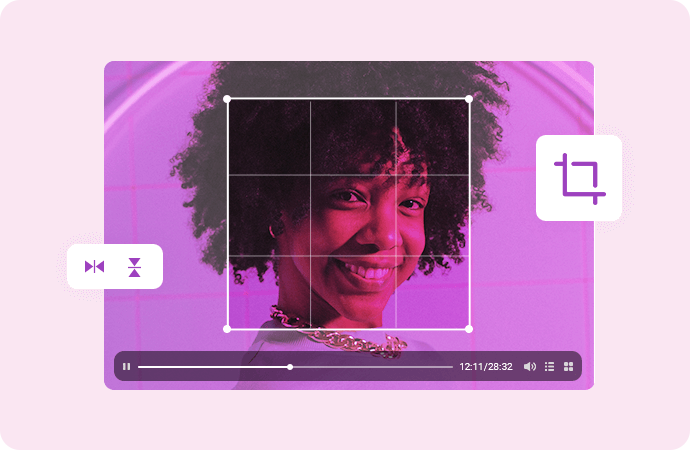
Free Video Cropper: Crop Video File to Delete Unwanted Portions

Free Video Merger: Merge Multiple Clips into One Video (with Transitions)
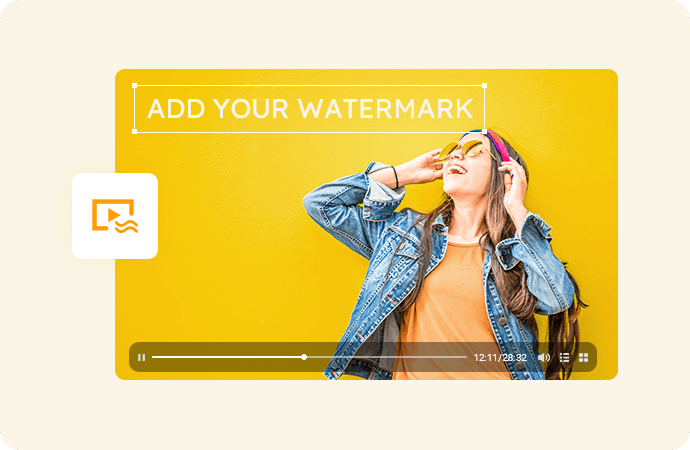
Adding Watermark to Videos without Sacrificing Image Quality

Reduce the size of video files to save storage space or facilitate network transmission
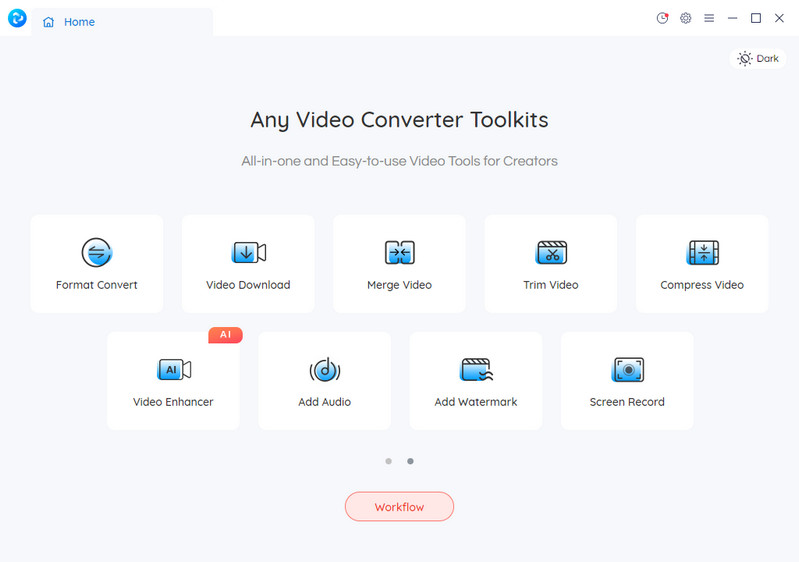
Launch Any Video Converter
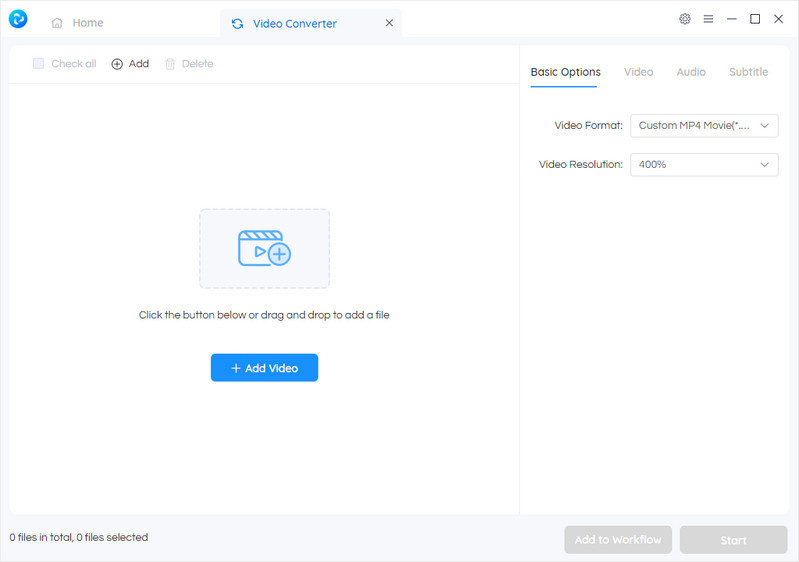
Select Any Single Tool You Want and Add Source Videos
Add Custom Workflow Tool
Start Processing Your Video
“Any Video Converter is a WINNER! It is the best video converter and downloader after a wise investment. It converts my videos to mp4 with x264 video codec at fast conversion speed, and finally, the output videos displayed perfectly.”
 Sayre Meadows

"I was looking for a free video converter. My Nikon camera takes videos in MOV file format. I have a Dell laptop with Window Movie Maker. I needed something to convert my files. This worked quickly and easily."
 Alcove Spring
"Any Video Converter has always served me well when creating and editing videos. There is a large assortment of formats you can convert to, allowing for usable output for just about any device or software. The conversion is relatively quick, and it is high-quality. I frequently use it to embed SRT captions into a video."
 S Alexander
"There are so many options and choices for what format you need. It’s easy to use cost effective. You need to change the format of the video? Without a sweat you select a few buttons and just like that your done!"
 Samuel Odamah
"Crazy! It's such a powerful video converter I am searching for. I used it to convert thousands of videos and download online videos or music for my own. I also found it comes with various video editing features, great."
 Emma Louis
"Very useful. This is probably the easiest video converter I have found. It has various output formats to choose from. You can directly drag and drop video files to the program."
 Rose Justice

AI-based video enhancement software to upscale video from 480p to 1080p, 1080p to 4K, and up to 8K, and bring your old videos a new look.


AI-powered video blur tool to blur or pixelate a video, and selectively blur multiple & moving faces in the video.

All-in-one AI photo editing tool that simplifies complicated photo editing process and enhances your productivity.


Powerful enterprise DLP software designed to prevent data leaks, protect sensitive files, monitor employee activity and secure business information.

Advanced image enhancement software to automatically improve photo clarity, restore fine details, adjust colors, and optimize overall visual quality in batches.

Money Back Guarantee

100% Secured and Clean

Free Technical Support

Customer Service within 24 Hours
© 2005-2026 Anvsoft Inc.All Rights Reserved.