

"Any Video Converter couldn't be much easier to use, and it supports batch conversions--always a nice perk. You'll definitely want to add this utility to your video arsenal."
-Rick Broida
Reward By Expert


As a professional video converter, Any Video Converter Professional performs its excellence in video converting and video editing beyond your imagination. Easy-to-use interface, fast converting speed, loaded useful features are all integrated. This video converter helps you to enjoy videos on iPad, iPod, iPhone, PSP, Zune, other portable players and mobile phones never easier than before.
Now, let's take a tour to learn more about this powerful video converter. Besides editing and converting video files, Any Video Converter Pro also supports burning videos to DVD, AVCHD DVD disc with DVD menu.
New: Support WebM as input and output file format.
Features

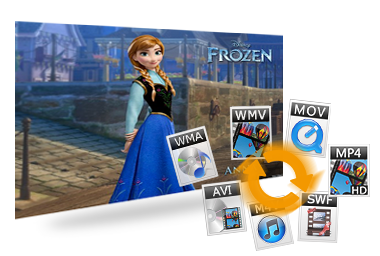
Convert all video formats, including MOV, M2TS, OGM, RM, WMV, QT, FLV, MOD, TS, TP, DVR-MS, Divx, etc. to AVI, WMV, MP4, MPEG-1, MPEG-2, FLV, SWF, MKV, 3GP and 3G2 for all portable media players including iPod, iPhone, Zune; mobile phones including Google Nexus One, BlackBerry and Nokia and game consoles including PS3, Xbox360 and Wii.
Click to know supported output devices.Served as a high-definition video converter, Any Video Converter allows you to convert AVCHD (*.M2TS, *.MTS, *.TOD), HD MKV, HD H.264/MPEG-4 AVC, HD MPEG-2, HD MPEG Transport Stream (*.TS, *.TP, *.M2T) and other high-definition video formats to standard definition video formats. Besides, high-definition video output formats including AVI, WMV, MP4 and MKV (720P & 1080P) are also available.

Any Video Converter can download & convert videos from 100 sites, like Veoh, Vimeo, MTV, Vevo, HowCast, Break, Facebook, Myvideo.de, Liveleak, NicoVideo, etc.
Paste URL links of your favorite online videos to the program, download to your hard drive and convert to the popular video formats for all your mobile devices. Downloading only or downloading & converting in a click are also available.
The video converter would also allow you to specify quality level to videos by clicking menu Edit > Option > Online Video.
Add "Flatten and add faststart to mp4 files" to enable mp4 streaming.

Despite formats of the videos, you can merge multiple video files into a singe long video.
Help you to clip multiple segments in a video by setting start point and end point as you like. Or trim a section of the video by setting start time and end time.
Crop frame size to remove black bars and retain what you want only. You can either use intuitive drag-and-drop cropping window or set crop area size, left margin and top margin to achieve the goal.
Adjust the brightness, contrast, satuation, rotate or flip your video, add artistic effects like noise or sharpen to make your video different and special.
Prepare a .srt subtitle with your own dialogue and embed it into output video, set encoding, position, size and font for your own subtitle.
Unfold Output Profile to choose Burning to DVD from the list, and then select DVD video NTSC Movie or DVD video PAL Movie according to your TV system. You can customize DVD as you like, such as name your DVD in DVD Menu Tile, browse music file from your local computer for your DVD in Background Music, change your DVD's background image in Background Image, etc.
The program supports burning video to DVD-RAM, DVD+R, DVD+RW, DVD+R Dual Layer, DVD-R, DVD-RW, DVD-R Dual Layer, random access writes with complete DVD menu.
Batch add video files in different folders easily with a folder selection dialog. Batch convert videos to output profile you specified and auto shutdown after encoding is also available.
Embed useful pre-defined options to choose and completely customize frame size, video bitrate, audio bitrate by manually entering a value.
User interface of Any Video Converter Professional covers 20 languages including English, Germany, French, Japanese, Simplified Chinese, Traditional Chinese, Arabic, Spanish, Portuguese and other languages.
| Delivery | Keycode |
| File Size | 29.1 MB |
| Version | 3.6.0 |
| Platform | Windows XP, Vista, Windows 7 & Windows 8 |
| Supported Input Formats | |
| Video | 3g2, 3gp, 3gpp, 3gp2, amv, asf, avi, avs, dat, divx, dv, dvr-ms, f4v, flv, m1v, m2p, m2t, m2ts, m2v, m4v, mkv, mod, mov, mp4, mpe, mpeg, mpeg2, mpeg4, mpg, mpv, mts, nsv, ogg, ogm, ogv, qt, rm, rmvb, tod, trp, tp, ts, vob, vro, wmv, webm |
| Supported Output Formats | |
| Video | wmv, mpg, mp4, avi, asf, m2ts, 3gp, 3g2, flv, mkv, swf, webm |
| Audio | mp3, ogg, wav, aac, m4a, wma |
| Disc | DVD-RAM, DVD+R, DVD+RW, DVD+R Dual Layer, DVD-R, DVD-RW, DVD-R Dual Layer, and random access writes. |
| Supported Devices | |
| iPod, iPhone, iPad, Apple TV, PSP, PS3, Walkman, Zune, Xbox360, Amazon Kindle Fire, Motorola Xoom, Dell Streak, Samsung Galaxy Tab, Viewpad, and all kinds of mobile phones such as Nokia, Gphone, Samsung, BlackBerry etc. | |
| System Requirements | |
| OS | 2000*, XP, Vista (32bit & 64bit), Windows 7 (32bit & 64bit) |
| Processor | 1GHz Intel/AMD processor or above |
| RAM | 256MB RAM (512MB or above recommended) |
| Free Hard Disk | 70MB for installation |
| DVD Driver | DVD+R/RW/-RW Burner |
| Sound Card | Windows-compatible sound card (recommended) |
| Note | Manually download the "diplus.dll" file, and save it to the installation directory of the program in Windows 2000 SP4. To rip DVD disc, DVD-ROM is necessary. |
Click the thumbnail to view larger image
How to Convert Videos with Any Video Converter
Follow the steps to convert any video formats with ease:
Step 1: Download and install Any Video Converter
Click here to download Any Video Converter. After the download is finished, run the any-video-converter.exe file and follow the installation wizard instructions.
Step 2: Run Any Video Converter and add your input video file
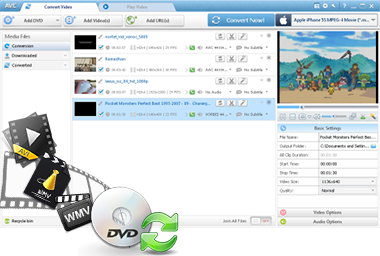
To select a video you would like to convert, hit the Add Video Files button on the top left corner. In the opened Windows Explorer Window, browse for the necessary video file(s).
Step 3: Set up the conversion output profile
After you have selected the input video file, click the button under Output Profile on the top right corner to select the output format. In the list of Output Profile, select your desired output format.
Under the preview window field, you can also manually set the output parameters. For novice users it is recommended to select the default parameter.
Step 4: Set up a proper video output folder
Click the menu File > Set Output Folder and select a location on your HDD for the output video file. If you don’t do this step, the default output folder would be in C:\Documents and Settings\xxx\My Documents\Any Video Converter(XP) or in C:\User\xxx\Documents\Any Video Converter(Win7).
Step 5: Convert your video files
After you have set up all the conversion output format and parameters, hit the Convert Now! button to start converting.
When the process is completed, Click the Open Output Folder button in bottom left corner (or right-click the source file in the middle panel and click Open Destination File Location. Or click menu File > Open Output Folder). Then you would find the converted file.
About AnvSoft | News Release | Affiliate | Links | Privacy | Legal Notices | Photo to DVD | Funny Photo Maker | HTML5 Tools | PDF Tools | iPod Transfer
© 2005-2012 AnvSoft Inc., All Rights Reserved.